YTMP4 - YouTube to MP4 Downloader
Convert a YouTube link to MP4 with YTMP4. Choose an available video quality, or switch to MP3 for audio.
How to Convert YouTube Videos to MP4
Convert any YouTube video in 3 simple steps
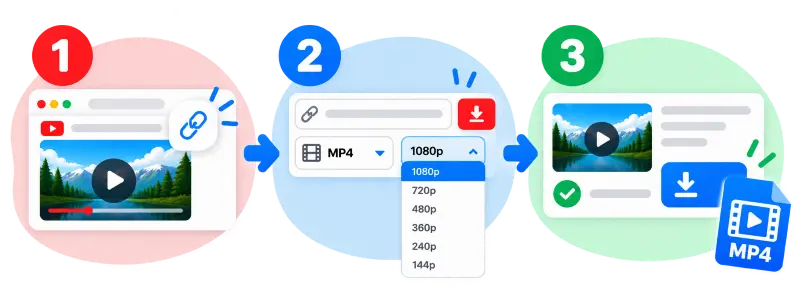
Copy the video link
Open the video on YouTube. Copy its URL from the browser address bar, or use Share → Copy link in the YouTube app.
Paste the link and choose a quality
Paste the URL into the converter box. Select MP4, then choose a resolution from the options available for that video.
Convert and save the file
Click Fetch and wait for the conversion to finish. Select Download, then check your browser's download folder to find the file.
YTMP4 Features
Everything you need to convert and save YouTube videos
MP4 video downloads
Convert a supported YouTube link to an MP4 file. The available output depends on the source video and the formats YTMP4 can process.
Choose the available quality
Select from the resolutions displayed for the video. Options may range from lower resolutions for smaller files to HD or higher when the source supports them.
Up to 4K when available
Some videos offer resolutions up to 2160p (4K). A video can't be downloaded in a resolution that wasn't part of the original upload.
MP3 audio conversion
Switch to MP3 to save audio without the video. YTMP4 uses the single best available audio quality for that video rather than a menu of bitrate choices.
YouTube Shorts support
Paste a Shorts link into the same converter box and follow the normal conversion steps. It works the same way as a standard video URL.
Browser-based access
Use YTMP4 from a supported browser on a phone, tablet or computer. There's no separate desktop program or browser extension required.
No account required
Start with a supported link without creating a YTMP4 account. No sign-up, no email, no subscription.
Save on mobile or desktop
After downloading, use your device's normal download location. Works on Android, iPhone, iPad, Windows, macOS, Linux and Chromebook.
Clear conversion steps
The workflow is short: paste a link, select the format and quality, then download the result. No confusing menus or hidden steps.
Choose the right MP4 quality
The right resolution for a YTMP4 download depends on the screen you plan to use, the quality of the original video and how large a file you want.
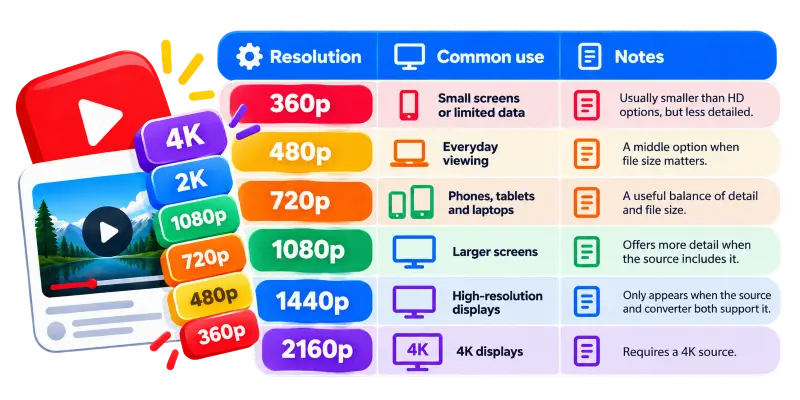
| Resolution | Common use | Notes |
|---|---|---|
| 360p | Small screens or limited data | Usually smaller than HD options, but less detailed. |
| 480p | Everyday viewing | A middle option when file size matters. |
| 720p (HD) | Phones, tablets and laptops | A useful balance of detail and file size. |
| 1080p (Full HD) | Larger screens | Offers more detail when the source includes it. |
| 1440p (2K/QHD) | High-resolution displays | Only appears when the source and converter both support it. |
| 2160p (4K/UHD) | 4K displays | Requires a 4K source. |
Actual file size varies with video length, frame rate, codec and the content itself.
Why don't I see 1080p or 4K?
The available options depend on the original upload and the streams YTMP4 can process. If a video was uploaded at 720p, it won't have a genuine 1080p or 4K version. At higher resolutions, YouTube may provide video and audio separately, so YTMP4 has to combine them correctly to produce a file with sound.
Download YouTube videos on your device
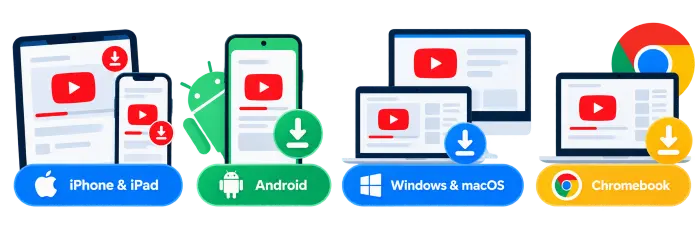
iPhone and iPad
- Open YTMP4 in Safari and paste the supported video link.
- Choose an available format and quality, then start the conversion.
- Download the file. If Safari asks where to save it, choose Save to Files.
- Open the Files app and check Downloads or the folder you selected.
Keep the page open while the conversion is running, and avoid locking the device if doing so interrupts the process.
Android
- Open YTMP4 in Chrome or another supported browser.
- Paste the video link, choose the format and quality, and start the conversion.
- Tap Download when the file is ready.
- Open Downloads in your browser or Files app to locate the file.
If the file is not visible immediately, check the browser's download list.
Windows and macOS
Open YTMP4 in your browser, paste the link and select an available quality. Download the completed file and check the browser's Downloads list or your configured download folder.
Most current computers include a player that can open common MP4 files, although playback depends on the file's codec and the installed software.
Chromebook
Use a supported browser and follow the same link-and-download steps. The downloaded file is usually available through the Files app under Downloads, subject to your device's settings and any school or workplace restrictions.
Convert YouTube Shorts to MP4
Copy the link from the Shorts video and paste it into YTMP4 just as you would a regular video URL. Choose an available quality and download the result the same way.
YouTube to MP3: audio only
For audio-only downloads, select MP3 in the format switcher. YTMP4 uses the single best available audio quality for that video, so there's no separate bitrate menu to pick from.
Troubleshooting: quick fixes
| Problem | What to try |
|---|---|
| "Please use a valid YouTube video URL" | Copy the full link from YouTube and paste it again. Check for missing characters or extra spaces. |
| Conversion fails | Reload the page and submit the link again. Try another available quality if the problem continues. |
| Processing is stuck | Check your connection and give the process time to finish. Long videos or higher resolutions may take longer. If the page has stopped responding, retry it. |
| The MP4 has no sound | Try another available quality and convert again. If the converter separates audio and video at higher resolutions, it must merge them for sound to be included. |
| 1080p or 4K is missing | Check the original video's available quality. The converter cannot create a higher source resolution that does not exist. |
| The downloaded file is missing | Check the browser's download list. On Android, look in Downloads; on iPhone or iPad, check Safari and the Files app. |
| A private or live video will not convert | YTMP4 may not support private, members-only, live or region-restricted videos. Use only links and content you are permitted to access. |
| A long video fails | Very long videos can take longer to process and may offer fewer quality options. Try a shorter video if the conversion keeps failing. |
YTMP4 and other ways to save videos
YTMP4 is a browser-based converter, while desktop download tools require installation and may offer more controls. YouTube's official offline feature is different from downloading an MP4 file: offline videos generally remain inside the YouTube app rather than becoming files that you can move freely.
| Option | Runs in a browser | Creates a separate MP4 file | Installation |
|---|---|---|---|
| YTMP4 | Yes | Yes, for MP4 or MP3 | No separate app for browser use |
| Desktop downloader | Usually no | Depends on the tool | Usually required |
| YouTube Premium offline viewing | No, uses the YouTube app | No, downloads remain in the app | YouTube app |
Use YouTube's official options where appropriate, and make sure you have permission to download or reuse the content.
Convert YouTube to MP4 or MP3 for free
Paste a link, pick MP4 or MP3, choose a quality, and download. There's no account to create and no software to install. YTMP4 handles the conversion and gets out of the way, for free.
Frequently Asked Questions
Everything you need to know about YTMP4
YTMP4 is a browser-based tool for converting supported YouTube links to MP4. Paste a link, choose an available quality and download the resulting file.
Copy the video URL, paste it into the converter, choose MP4 and a quality, then start the conversion. Download the file when it is ready.
The available resolutions depend on the source video and the converter. Options may include 360p, 480p, 720p, 1080p, 1440p or 2160p, but not every video offers every resolution.
The original video may not have been uploaded in 4K, or YTMP4 may not support that option for the video.
Yes. Paste a Shorts link into the converter the same way as a regular video URL and follow the usual steps.
Yes. Switch to MP3 in the format selector for audio-only output. YTMP4 uses the single best available audio quality for the source video.
There's no fixed length limit, but very long videos can take longer to process and may offer fewer quality options.
No. The browser-based workflow on this page needs neither one.
On Android, check Downloads in your browser or Files app. On iPhone and iPad, check Safari's download list and the Files app. On a computer or Chromebook, check the browser's Downloads list or the configured download folder.
Try another available quality and run the conversion again. At high resolutions, the video and audio may be supplied separately and need to be combined. If the problem continues, the selected option may not be processed correctly.
Check your internet connection, keep the conversion page open and wait for processing to finish. Longer videos and higher resolutions can take more time. Retry the link if the page becomes unresponsive.
Yes. Open YTMP4 in your phone's browser and follow the same steps as on desktop.
No. YTMP4 is free, with no premium tier or paid upgrade.
No. YTMP4 produces a standard MP4 or MP3 file that plays in any regular video or audio player you already have.